Key Takeaways
- 2FA stops the vast majority of account takeovers — even if your password is breached, the attacker can't log in without your second factor.
- Authenticator apps (Google Authenticator, Authy, Microsoft Authenticator) are the right choice for most people — free, work offline, not vulnerable to SIM-swapping.
- SMS 2FA is better than no 2FA but is vulnerable to SIM-swapping attacks — upgrade to an app if the service supports it.
- Save your backup codes somewhere offline and safe — losing access to your 2FA method without backup codes can lock you out permanently.
- Enable 2FA on your email account first — email is used to recover every other account, making it the highest-value target.
Passwords are a broken model. People reuse them. Services get breached. Credential databases end up for sale on forums within weeks of a breach, and automated bots try them against every major platform immediately. The defence that actually works is two-factor authentication: require something the attacker doesn't have even when they already have your password.
This guide covers how 2FA works, which methods to use (and which to avoid when you have better options), how to set it up without getting locked out, and which accounts deserve priority.
What 2FA Actually Does
Authentication factors fall into three categories: something you know (your password), something you have (your phone, a hardware key), and something you are (biometrics). Passwords are the first category. 2FA adds a second factor from one of the other two.
The practical effect is that a stolen password is no longer sufficient to access your account. An attacker sitting in a different country with a list of one million username/password pairs — a very common reality after any large breach — can't log into accounts protected by 2FA because they don't have the second factor. They move on to the unprotected accounts, of which there are still plenty.
The 2FA Methods, Ranked
Not all 2FA is equal. From most to least secure:
Hardware Security Keys
Physical USB or NFC devices like the YubiKey series (from Yubico, ~$25–$50) and Google Titan Key (~$30) are the most secure 2FA method available. They use the FIDO2/WebAuthn standard, which is phishing-resistant in a way that codes are not. When you insert or tap a hardware key, it cryptographically verifies the actual domain of the site requesting authentication. A phishing site that looks exactly like Gmail's login page gets nothing useful back from a hardware key — the domain check fails silently. Hardware keys work even when your phone is dead, lost, or out of signal.
Authenticator Apps (TOTP)
Apps like Google Authenticator, Authy, and Microsoft Authenticator generate 6-digit codes that rotate every 30 seconds using a standard called TOTP (Time-based One-Time Password). These are free, work without mobile data, and are not vulnerable to SIM-swapping. They are the right choice for most people on most accounts.
The main differences between apps: Authy supports encrypted cloud backup of your TOTP tokens, meaning if you lose your phone you can restore to a new device — useful, but means your tokens are only as safe as your Authy password and account. Google Authenticator now supports backup via your Google account. Microsoft Authenticator includes push notifications for Microsoft accounts in addition to TOTP. 1Password and Bitwarden have TOTP built in, which is convenient if you already use a password manager — though consolidating your password and 2FA in the same place has its own tradeoffs if that account is ever compromised.
SMS / Text Codes
Your bank sends a code to your phone number. Better than no 2FA, but the weakest method of the three. SMS codes are vulnerable to SIM-swapping: an attacker calls your mobile carrier, impersonates you using publicly available information, and convinces them to transfer your number to an attacker-controlled SIM. Your phone loses signal; their phone starts receiving your texts.
SIM-swapping is not random. It is targeted at people with crypto holdings, social media accounts with significant reach, or public profiles. If you fall into those categories, SMS 2FA on your critical accounts is a meaningful risk. For everyone else, SMS 2FA is still a genuine upgrade over no 2FA — just upgrade to an authenticator app as soon as the service supports it.
How to Set Up an Authenticator App
The process is nearly identical across services. Using Google or Authy as the example:
- Install the app. Download Google Authenticator or Authy from the App Store or Google Play.
- Navigate to security settings. On the service you want to protect, find the account security or two-factor authentication settings. It is usually under Account > Security or Privacy > Two-Factor Authentication.
- Select "Authenticator app". The service will display a QR code on screen.
- Scan the QR code. In your authenticator app, tap the + button (Google Authenticator) or "Add account" (Authy), then select "Scan QR code." Point your phone's camera at the code on screen.
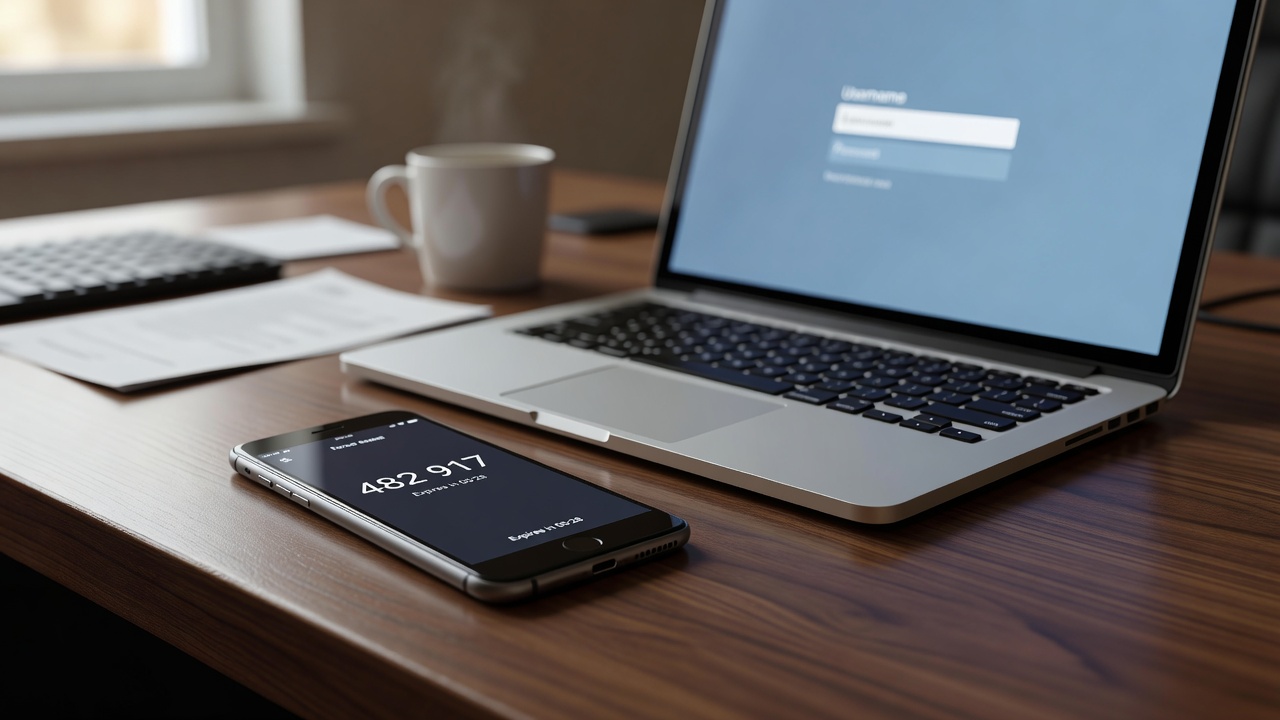
- Verify it works. The app will immediately start generating 6-digit codes for that account. Enter the current code into the verification field on the website before the code rotates.
- Save your backup codes. The service will provide backup codes. Save them immediately — see below.
The whole process takes about two minutes per account.
Backup Codes — What They Are and Why They Matter
When you enable 2FA, most services generate 8 to 10 single-use backup codes. These are your emergency exits: if you lose access to your phone and can't generate a TOTP code, you enter one of these codes instead. Each code works once and is then invalidated.
Treat them seriously. The right approach: save them to your password manager under the relevant account entry, and also print or write them down and store them somewhere physically secure. Cloud password manager plus offline copy covers both scenarios — account manager compromised, and house fire/theft.
Many people skip this step and discover the problem the hard way when their phone breaks or is stolen. Set up backup codes before you need them.
How to Avoid Getting Locked Out
The realistic risk with 2FA is not an attacker bypassing it — it's you losing access to your own accounts. Four things protect against this:
- Backup codes saved immediately after setup. Non-negotiable. Every service provides them; every user should save them.
- Recovery email on high-value accounts. Ensure your email account and any critical services have a current recovery email or phone on file — one you actually control and can access.
- Use Authy for TOTP if you're not using a password manager. Authy's encrypted backup means a new phone can restore all your tokens. Google Authenticator's account backup achieves the same if you have a Google account.
- Register 2FA on two devices where supported. Google accounts let you add multiple authenticator devices. Some services support multiple hardware keys. Where it's available, set up a second device as a fallback.
Which Accounts to Prioritise
Enable 2FA on your email account first. Not your bank, not your social media — email. Here's why: when you forget a password on any other service, you click "Forgot password" and receive a reset link to your email. Whoever controls your inbox can reset and take over every other account associated with it. Email is the master key. Protect it first.
After email, the priority order for most people: password manager, financial accounts (banking, investment, crypto), work accounts (especially any with access to customer data or financial systems), social media accounts with significant following or linked payment methods, cloud storage (Google Drive, iCloud, Dropbox — often full of sensitive files).
Any account that could cause financial loss or identity theft if compromised warrants 2FA. Any account that could be used to send messages impersonating you at scale (email, social media) also warrants it.
Hardware Keys — When They're Worth It
A $30–$50 hardware key is worth it in three situations: you have high-value accounts that are attractive enough to warrant a targeted phishing attack; you manage accounts for an organisation where a single compromise could affect many people or systems; or you simply want the strongest available protection without thinking about it.
Hardware keys work with most major services — Google, GitHub, Microsoft, Dropbox, Twitter/X, and most password managers. Many security-conscious people buy two: one to use daily, one stored somewhere safe as a backup. Register both on your accounts when you set up the primary.
For most individual users protecting personal accounts, an authenticator app is sufficient. The marginal risk between an authenticator app and a hardware key is real but small for non-targeted individuals. The risk between no 2FA and any 2FA is large. Start with the app; upgrade to hardware if and when it makes sense for your threat model.