Key Takeaways
- Cloud sync (Dropbox, Google Drive, OneDrive) is not a backup — deleted files propagate to the sync, and version history is limited.
- The 3-2-1 rule: 3 copies, 2 different media types, 1 offsite — this structure survives drive failure, theft, fire, and ransomware.
- Backblaze Personal Backup at $99/year is the best-value unlimited cloud backup for individuals and small businesses with 5 or fewer devices.
- A backup you have never tested is an assumption, not a guarantee — restore a sample of files quarterly.
- Ransomware encrypts files on connected drives and synced cloud storage; an air-gapped or versioned backup is the only recovery path.
Most people have a backup story. Not a story about backups working — a story about the moment they discovered they had no backup. A drive that stopped spinning. A laptop stolen from a car. Ransomware that encrypted three years of client files overnight. Accidental deletion of something irreplaceable. Same ending in every version: data gone, no recovery path.
The tools to prevent this are cheap, widely available, and mostly automated. The reason most people do not use them is that backup feels abstract until the moment it becomes urgent, and by then it is too late.
What Actually Counts as a Backup
The most common misconception about backup is that Dropbox, Google Drive, and OneDrive qualify as one. They do not. These are sync services. The distinction matters: a sync service mirrors your files between your device and the cloud. When you delete a file on your device, that deletion propagates to the cloud. When ransomware encrypts your files, the encrypted versions sync to the cloud and overwrite the originals.
Most sync services include version history — typically 30 to 180 days depending on the plan — which provides limited recovery ability. But version history is not a backup. It does not cover ransomware that lies dormant past the version window, it does not protect against account compromise, and it was not designed for full-system recovery after catastrophic failure.
A true backup is a separate, independent copy of your data that does not automatically mirror changes from the source. If the source is destroyed, the backup survives intact.
The 3-2-1 Rule
The 3-2-1 rule has been the standard backup architecture for two decades because it survives every common failure scenario:
- 3 copies of your data total — the original plus two backups
- 2 different types of media — for example, an external hard drive and a cloud backup service
- 1 copy offsite — stored somewhere physically separate from your primary location
Each condition closes a different failure gap. Three copies means a single drive failure does not leave you with no backup. Two types of media means a media-specific failure — a firmware bug that bricks a particular drive model, for instance — cannot destroy both copies simultaneously. One copy offsite means fire, flood, theft, or ransomware spreading across your local network cannot wipe everything at once.
In practice, for most individuals: the original files on your computer, a Time Machine or Windows Backup to an external drive, and a Backblaze subscription. That is 3-2-1, and it costs less than most people spend on streaming services in a year.
Local Backup Options
The local copy is your fastest recovery path. Restoring from a drive plugged directly into your machine is dramatically faster than downloading hundreds of gigabytes from the cloud after a failure.
Windows has two built-in options worth using together. File History, accessible through Windows Settings, automatically backs up files in user folders to a connected external drive at configurable intervals. For full-system recovery after a catastrophic failure — reinstalling the OS and all applications — Windows Backup creates a complete system image. Use both; they serve different scenarios.
Mac users have Time Machine, which is one of the most well-designed backup implementations in any consumer OS. Connect an external drive, enable Time Machine in System Settings, and it handles the rest: hourly backups for the past 24 hours, daily backups for the past month, weekly backups until the drive fills. Restoring individual files or entire system states is equally straightforward from the same interface.
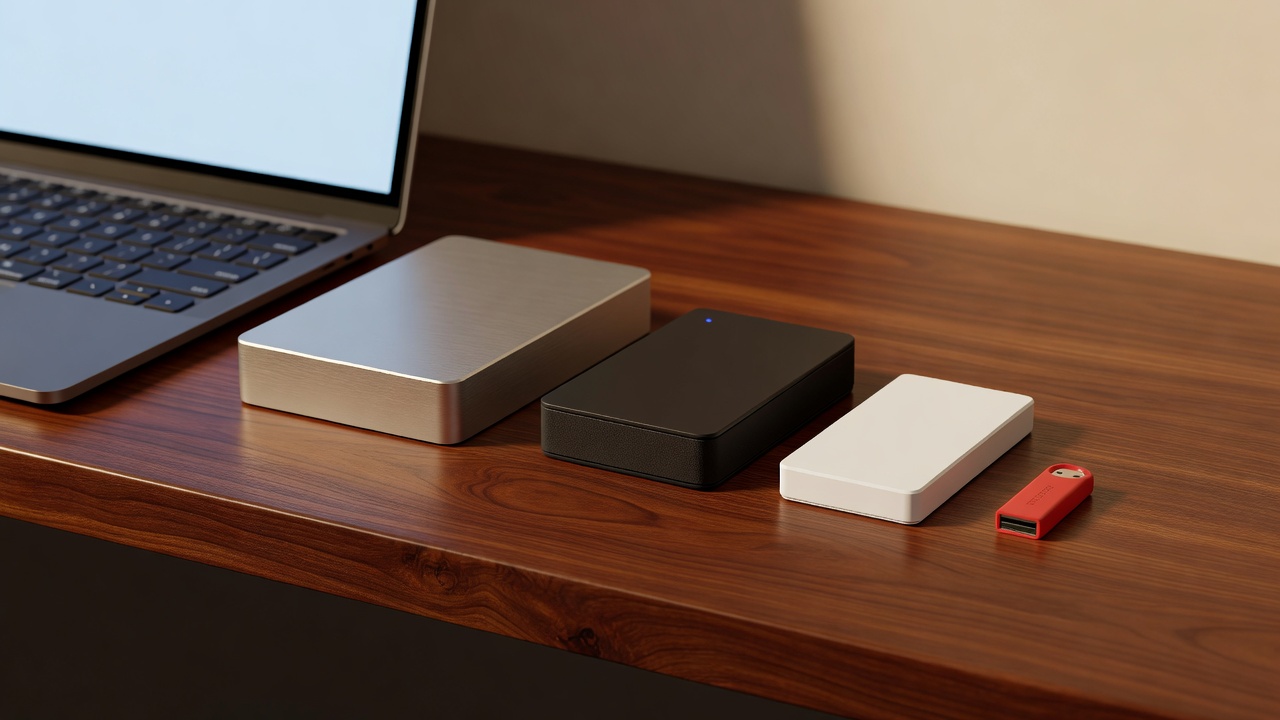
For the physical drive, the WD MyPassport and Seagate Backup Plus are the most common recommendations in the 1–4TB range. The brand matters less than the habit: keep the drive connected and let the backup software run.
Cloud Backup (Not Cloud Sync)
Backblaze Personal Backup is the category leader for individuals at $99 per year for unlimited storage on a single computer, with a one-year version history extendable to longer. There is no storage cap, no per-file size limit beyond explicitly excluded file types (OS files, applications — things you can reinstall), and no per-gigabyte pricing that creates a disincentive to back up large media libraries. For anyone with a single primary computer, Backblaze is the obvious choice.
IDrive covers multiple devices under one account. The free tier offers 10GB, and first-year promotional pricing typically puts 5TB at around $79.50. If you are backing up a laptop, a desktop, and other household machines, IDrive's multi-device model works out cheaper than multiple Backblaze accounts. The interface is less refined, but the core functionality is solid.
iCloud and Google One are sync services. Both offer some version history. Neither replaces a dedicated backup service with full versioning and independent storage.
Backup for Businesses
The individual tools above cover small businesses operating off workstations. When servers, databases, or virtual machines enter the picture, the requirements change substantially. Veeam is the dominant standard for server and virtual machine backup, with granular recovery options and strong ransomware protection. Acronis Cyber Protect combines backup with active threat detection on the same platform. Both are significantly more expensive than consumer tools — and appropriate for the risk profile involved.
For businesses, the offsite component of 3-2-1 should be explicitly designed for disaster recovery: a separate cloud region, a separate provider, or a physically separate location. A drive sitting in the same office as the server it backs up does not satisfy the intent of the rule.
How Often to Back Up
The honest answer to backup frequency is a question: how much data can you afford to lose? Any file created or changed since your last backup is unprotected. Data that does not exist in a backup is data you have implicitly decided you are willing to lose.
For most people, daily automated backup covers the important files. For business-critical data — invoices, contracts, client records — continuous backup or real-time replication sets the appropriate bar. The key word is automated. If you have to remember to run a backup, eventually you will forget at exactly the wrong moment.
The Step Almost Nobody Does: Test Your Restore
A backup you have never tested is an assumption. Files could be corrupting silently during the backup process. The backup software could be excluding the folder where your most important work lives. The external drive could be developing read errors. You would not know until you needed a restore, at which point discovering the problem becomes the worst possible timing.
Pick a date each quarter and restore a sample of files — not as a theoretical exercise, but as a genuine verification. Navigate to a document you care about in Backblaze or Time Machine, restore it to a test folder, and open it. If it opens correctly, the backup is working. If something is missing or corrupted, you have found a real problem while you still have time to fix it.
Quarterly restore testing takes about fifteen minutes. The gap between people who do this and people who do not is the entire difference between a backup strategy and a backup superstition.
Frequently Asked Questions
Is Google Drive or Dropbox a backup?
No — they are sync services. Files stored in Google Drive or Dropbox are mirrored between your device and the cloud. If you delete a file on your device, it is deleted from the cloud. If ransomware encrypts your files, the encrypted versions sync to the cloud, overwriting the originals. Version history (typically 30–180 days depending on plan) provides some recovery ability, but it is not a substitute for a true backup with full versioning and offsite storage.
What is the best cloud backup service?
For individuals and households, Backblaze Personal Backup is the best combination of price ($99/year) and unlimited storage with a one-year version history (extendable). IDrive is a good alternative for multiple devices with fixed storage. For businesses with servers, Veeam and Acronis Cyber Protect are the enterprise standards.
How often should I back up my data?
As frequently as you can afford to lose. For most people, daily automated backup covers the important files. The question to ask is: if I lost everything created or changed since my last backup, would that be acceptable? If not, the backup frequency needs to increase. For critical business data — invoices, contracts, client records — continuous backup or real-time replication is the appropriate standard.